The safest way to run several AI coding agents on one repository at the same time is to give each its own git worktree: a separate folder, checked out on its own branch, that shares the repository’s history. Because every agent edits different files on disk, they cannot overwrite each other, and you decide what gets merged. This guide shows the commands, a simple routine for reviewing each result and the habits that keep parallel work from turning into a mess.
Why parallel agents collide
An agent edits files in your working folder. Start two agents in the same folder and they change the same files, run tests against half-finished edits and leave one tangled diff. Even with different tasks, one agent’s partial work can break the other’s test run. That is the problem behind apps that run agents “in parallel workspaces,” like the one Meta just bought, as we reported in Meta acquires Conductor. You do not need a special app for the underlying idea, because git already includes it.
What a worktree is
According to the official git documentation, a repository can support multiple working trees, which lets you check out more than one branch at a time. A new worktree is a new directory linked to the same repository. Commits made in any of them go into the shared history, while each folder has its own checked-out files and its own index. By default git will not let you check out the same branch in two worktrees, which is useful here: it stops two agents from sharing one branch by accident.
Step 1: Start from a clean main
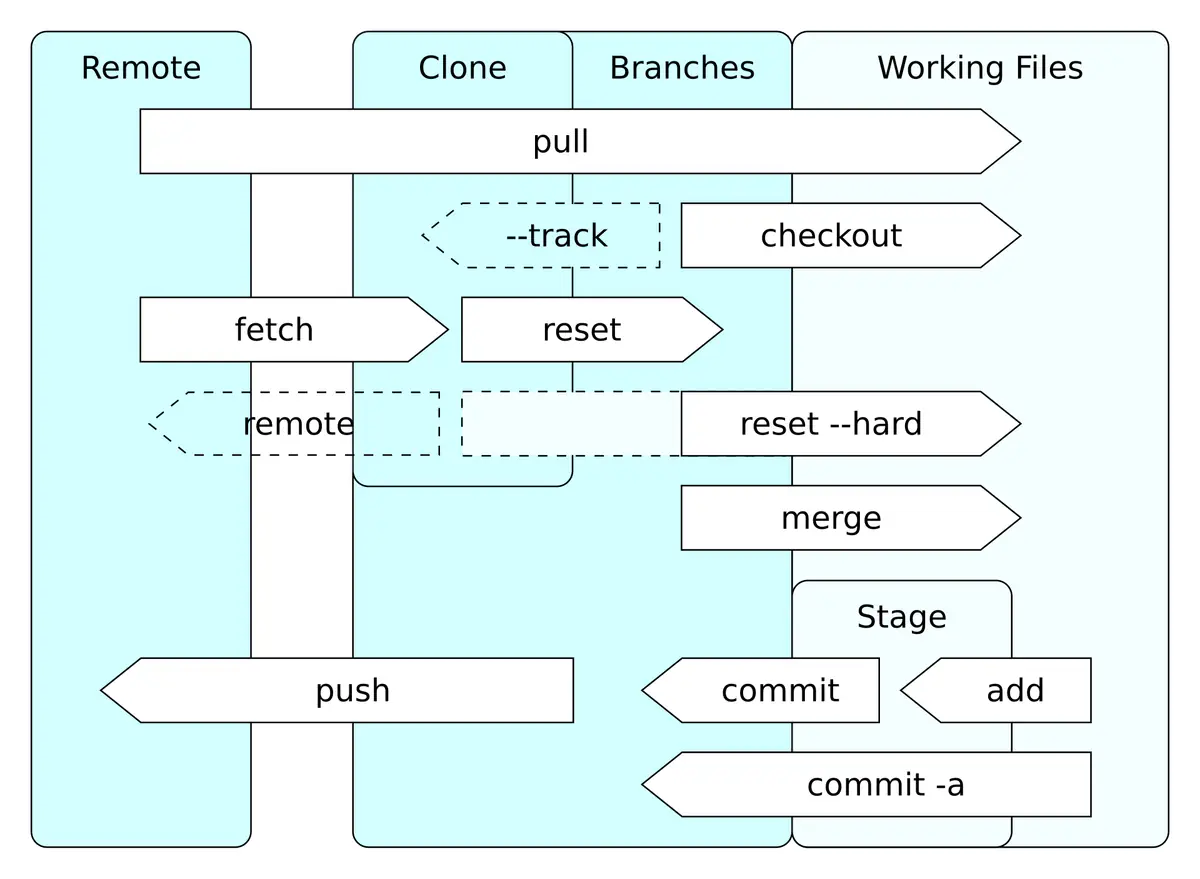
Make sure your main branch is up to date and your own work is committed or stashed. Each agent should begin from the same known point.
git checkout main
git pull
git status
Step 2: Create one worktree per task
Use a sibling folder, not a folder inside the repository, and give each a new branch. The -b option creates the branch as part of the command.
git worktree add -b agent/fix-login ../app-fix-login
git worktree add -b agent/add-export ../app-add-export
git worktree list
git worktree list shows every worktree, its folder and its branch. Keep the task small and the name specific, so you can tell from the branch alone what the agent was asked to do.
Step 3: Point each agent at its own folder
Open a separate terminal or editor window for each folder and start the agent there. Write the task as a short brief with a goal, the files it may touch, the command that proves success (for example the test command) and what it must not change. Environment files and dependencies are not copied automatically, since only tracked files are checked out, so install dependencies and copy local settings in each folder. Do not share secrets more widely than needed; our guide to least-privilege API keys for coding agents explains how to scope what an agent can reach.
Step 4: Review each branch like a colleague’s pull request
Do not merge because an agent says it is done. For each worktree:
- Read the diff:
git diff main...agent/fix-login. - Run the tests yourself in that folder.
- Check for unrelated edits, deleted tests and new dependencies.
- Ask the agent to fix specific problems, or discard the branch.
Our overview of using AI coding assistants effectively has a checklist for judging generated code.
Step 5: Merge one at a time
Merge branches sequentially, re-running tests after each. If two branches touch the same file you will see a normal merge conflict, which is far easier to handle in git than inside a shared folder.
git checkout main
git merge agent/fix-login
git merge agent/add-export
Step 6: Clean up
Remove finished worktrees so stale folders do not pile up. The documentation describes git worktree remove for deleting a worktree and git worktree prune for clearing records of folders you deleted by hand.
git worktree remove ../app-fix-login
git branch -d agent/fix-login
git worktree prune
Limits and honest trade-offs
Parallel work saves wall-clock time, not your attention. Each branch still needs review, and review is usually the bottleneck. Tasks that depend on each other, such as a database change and the code using it, should not run in parallel. Shared resources are another trap: two worktrees running a local server on the same port, or tests that write to the same database, will interfere even though the files are separate. We argue in one agent before many subagents that you should add agents only when a single one is clearly the limit.
What to watch next
- Whether coding tools make worktree creation automatic, as workspace-based apps already do.
- New git releases that change worktree behavior, which you can track in the official documentation.
- Meta’s promised new interface from Conductor, expected by early next year.
- Team conventions for naming and reviewing agent branches.
Key takeaways
- A git worktree gives each agent its own folder and branch while sharing repository history.
- Create worktrees from a clean main and name branches after the task.
- Review every agent branch yourself before merging, and merge one at a time.
- Remove finished worktrees with
git worktree removeandgit worktree prune. - Do not run dependent tasks or port-sharing servers in parallel.
Frequently asked questions
What is a git worktree?
It is an extra working folder linked to the same repository, with its own checked-out branch, so you can work on several branches at once.
Can two agents use the same branch?
By default git refuses to check out one branch in two worktrees, which protects against accidental sharing. Give each agent its own branch.
Do I need a special app to run agents in parallel?
No. Worktrees plus separate terminals are enough; apps mainly add convenience such as a dashboard and automatic setup.